To fix a broken link, identify the page containing it, confirm the destination no longer works and decide where the reader should go instead. A scanner helps find candidates; the destination and the surrounding sentence determine the right repair.
This guide uses ProRank 1.6.3 on WordPress. The screenshots show an isolated demonstration with a deliberately missing route guide. No customer content is used. For a wider review of your site structure, start with the WordPress internal-link audit.
1. Scan the current website
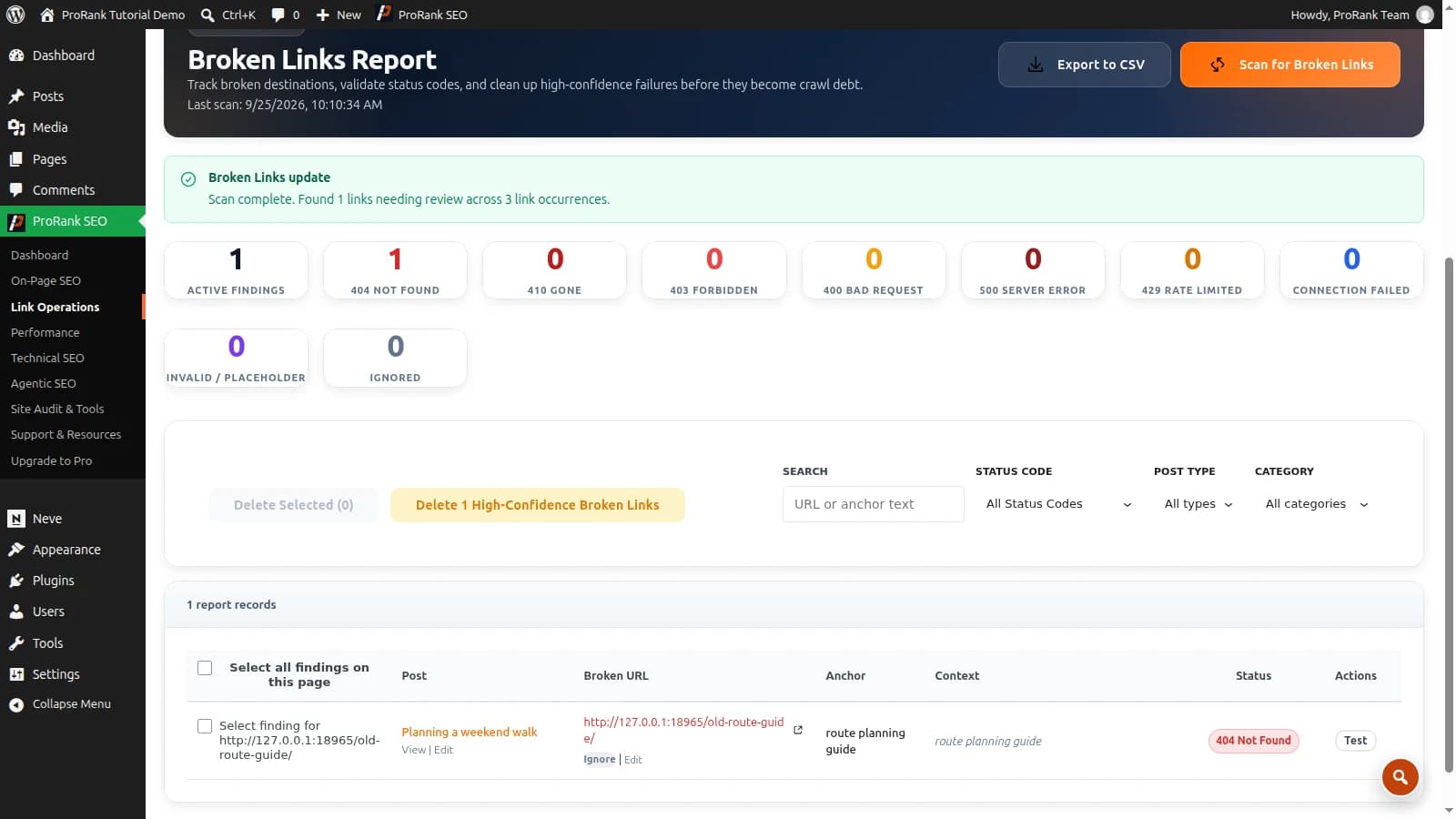
Open ProRank SEO → Link Operations → Broken Links and choose Scan for Broken Links. Wait for completion and read the status message. Check the scan date before relying on previously saved findings, particularly after a migration or a large content update.
A scan that finishes with unverified destinations needs further review. Keep these separate from confirmed missing pages. Likewise, finding the same destination in several posts means there are several referring locations to inspect; it does not necessarily mean several different URLs are broken.
2. Interpret the response before changing content
| Result | What to check | Possible action |
|---|---|---|
| 404 or 410 | Is the page missing, moved or deliberately removed? | Use a relevant replacement, restore the page or remove an unnecessary link. |
| 301 or 302 | Does the redirect reach the intended page? | Update the internal link to the final URL when appropriate. |
| 403 | Is access restricted or is a firewall blocking the checker? | Check manually and investigate access rules. |
| 429 | Has the server limited automated requests? | Retry later at a lower rate; keep the link until verified. |
| 5xx or timeout | Is the server temporarily unavailable? | Recheck and investigate the service before making an editorial change. |
| 200 | Does the page actually contain the expected content? | Check for empty pages, soft errors or an unrelated destination. |
HTTP status codes describe the server response, not whether the destination is a good answer to the reader’s question. Google also treats rate limits and server failures differently from ordinary missing pages. See its HTTP status documentation.
3. Open the referring page
Use the finding’s source information to locate the link. Check the public page and the sentence containing it. Use Test for a fresh check of the destination when needed. For an editable internal occurrence, open the source page’s outgoing links from Opportunities → Pages and inspect it.
Links can also live in menus, footer templates, reusable blocks, builder layouts or custom fields. The report may discover a destination that the selected editing tool does not support. If ProRank cannot safely edit that occurrence, use its owning editor and return to the report afterwards.
4. Choose a replacement that preserves the meaning
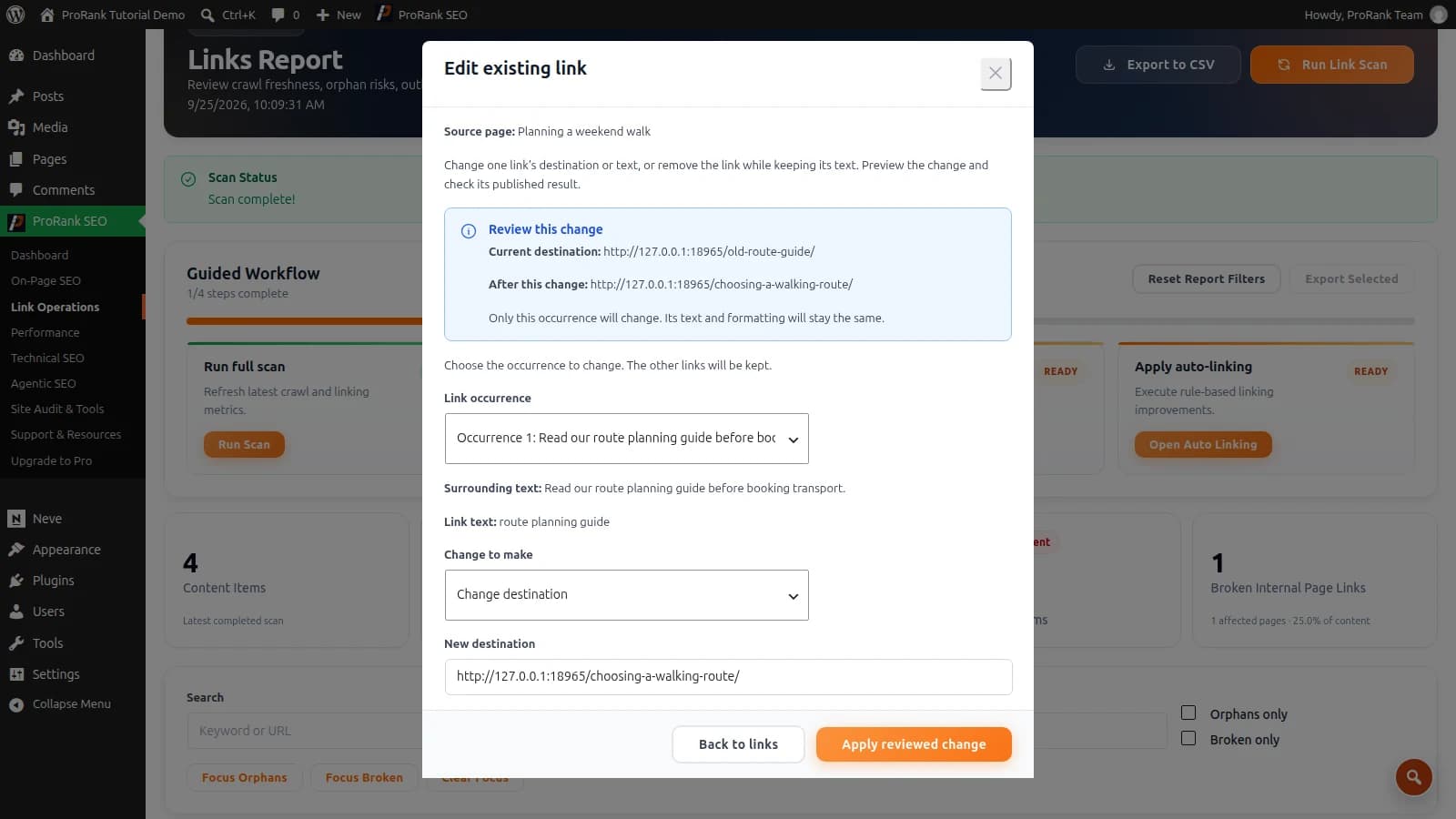
Our demonstration post “Planning a weekend walk” contains a link labelled “route planning guide” to/old-route-guide/, which does not exist. A suitable destination is the existing article/choosing-a-walking-route/. The replacement keeps the reader on the topic they selected.
- The content moved: update the referring link to its current canonical URL.
- The content was removed accidentally: restore it if it is still useful and accurate.
- A third-party reference disappeared: find an equivalent authoritative source and check its content.
- No suitable destination exists: remove the hyperlink or revise the sentence rather than sending visitors somewhere unrelated.
5. Preview the exact occurrence
In Edit existing link, check Link occurrence and the surrounding text. Choose the destination change, enter the replacement and select Preview change. The review should show the original URL and the intended result. Select Apply reviewed change only once that is correct.
Start with one occurrence so you can inspect the result. For the same old URL used throughout supported content, URL Changes provides a broader rule-based workflow. Read the scope and the changed-item count. A rule with zero changes is not evidence that the visible website was repaired.
6. Verify the public page and refresh the report
Check the action’s verification message, then open the source without relying on the editor preview. Follow the changed link and confirm the destination has the right content. If old HTML remains, clear the relevant WordPress, host or CDN page cache and check again.
If the request was interrupted or verification failed, inspect the page before retrying a write. A fresh Scan for Broken Links then updates the saved findings. Keep a record of unverified external URLs for a later check rather than presenting them as repaired.
Prevent the same problem coming back
Review internal links when changing a slug, retiring a service or importing content. Link to the final destination rather than relying on a chain of old URLs. After a larger change, check both broken links and orphan pages: removing a link can leave a useful page disconnected even when every remaining URL works.
See the linking documentation for the workspace, or download ProRank to work through the process on your WordPress site.
Frequently asked questions
- Does a 429 response mean a link is broken?
- No. It means the responding server is rate-limiting requests. Reduce the checking rate and retry later. Do not delete a useful link solely because an automated check returned 429.
- Should I redirect every missing page to the homepage?
- No. Use a redirect when a page has a genuine replacement. If no relevant replacement exists, update or remove the referring link as appropriate, and allow a permanently removed page to return an accurate missing-page response.
- Why does the old link remain after I save an edit?
- A page cache may still serve the previous HTML, or a builder or template may render the link from different storage. Inspect the public source page, clear the relevant cache and check the tool’s verification result before repeating the edit.
- Can ProRank replace a broken link without changing its text?
- For a supported editable occurrence, the existing-link editor can replace the destination while keeping the link text. Preview the selected occurrence and apply the reviewed change, then verify the public page.