An internal-link audit gives you a repair plan: which important pages need an incoming link, which destinations no longer work, and where an existing link takes an unnecessary detour. Start with a current inventory, review a small group of findings and check what visitors see after each change.
This walkthrough uses ProRank 1.6.3. Open ProRank SEO → Link Operations in WordPress. If you first need the principles behind choosing links, read the internal-linking strategy guide. The screenshots use an isolated demonstration site, not a customer website.
1. Confirm what the report covers
Open Settings and check the content types and exclusions relevant to your site. A store may need products as well as posts and pages. A site with custom content types needs those considered too. A deliberately excluded page should not be treated as evidence that the scanner lost it.
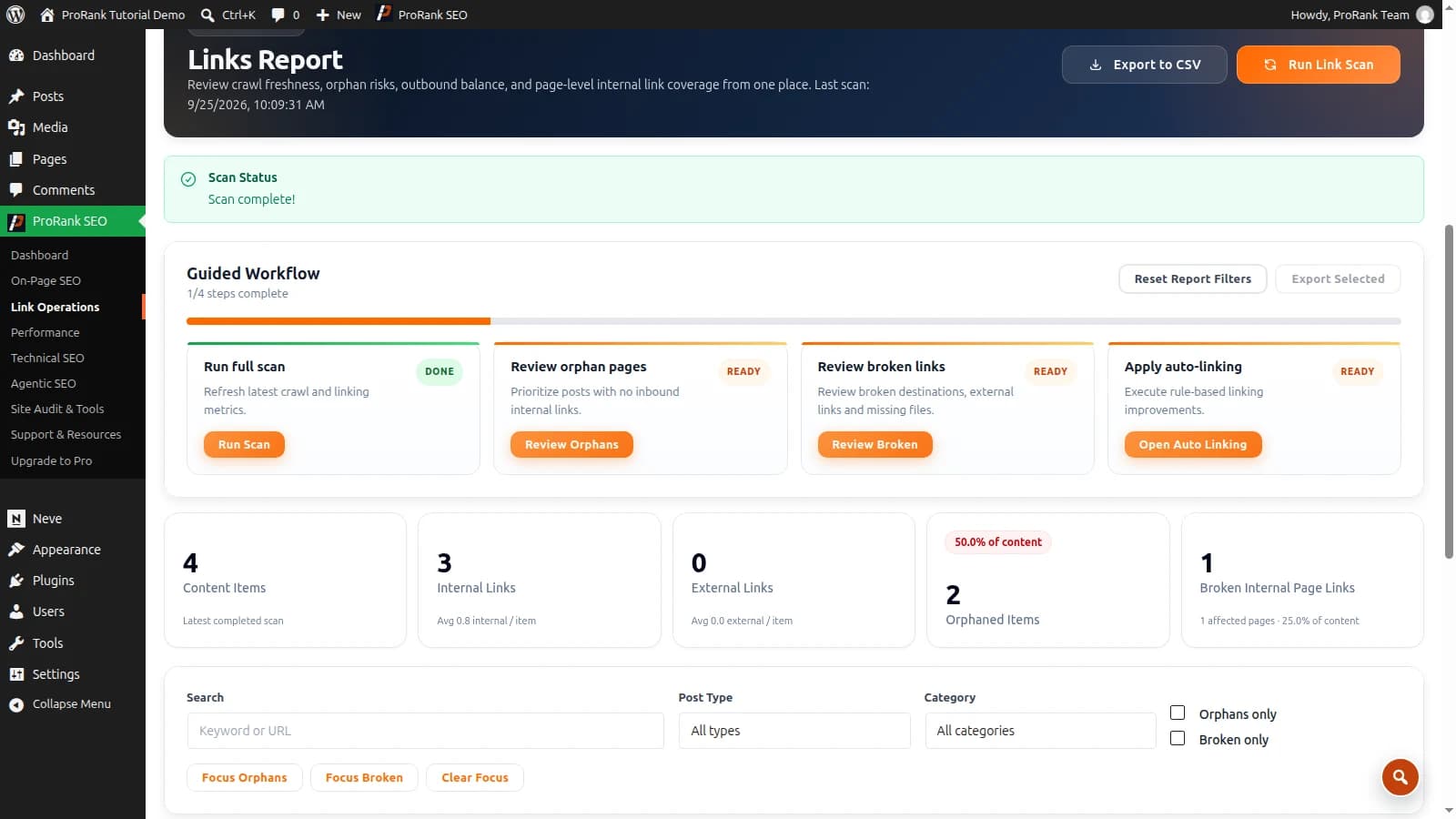
Note the last completed scan date and whether a scan is still running. Counts from an earlier scan describe that earlier snapshot. Clear report filters when you want to inspect the full configured scope; a filtered table and the overall site totals answer different questions.
2. Run a fresh link scan
Choose Opportunities → Pages, then Run Link Scan. Let the scan finish before using its totals to judge a repair. Check the completion message for destinations that could not be verified. A completed scan can still contain unresolved checks.
Export the report with Export to CSV if you want a baseline for your next review. Record the date and scope alongside the export. Comparing an unrestricted scan with a filtered report can otherwise look like a sudden loss of links.
3. Prioritise useful pages and confirmed failures
- Important pages without incoming links: review useful guides, services and products first. Confirm they belong in the public site structure.
- Broken internal destinations: confirm the status and intended replacement before editing the source.
- Redirecting destinations: link directly to the correct final URL when the redirect reflects a genuine move.
- Weak contextual coverage: a page may be reachable through navigation yet deserve a helpful link from a related article.
A link count is a starting point, not a quality score for the writing. Ten relevant links can be more useful than a hundred repetitions of a menu. Google recommends descriptive anchors and crawlable links that help readers understand the destination. Read Google’s link guidance.
4. Inspect the source before editing
Open a page’s incoming or outgoing links in the report. Check the source page, destination and anchor together. If you plan to replace an existing link, use Edit existing link, select the occurrence and review its surrounding text. A repeated URL can appear in several different contexts.
Choose the intended change, enter the replacement and select Preview change. Only use Apply reviewed change when that preview matches your intention. If the source has changed since the preview, reload its details and review it again.
5. Connect a page that needs an incoming link
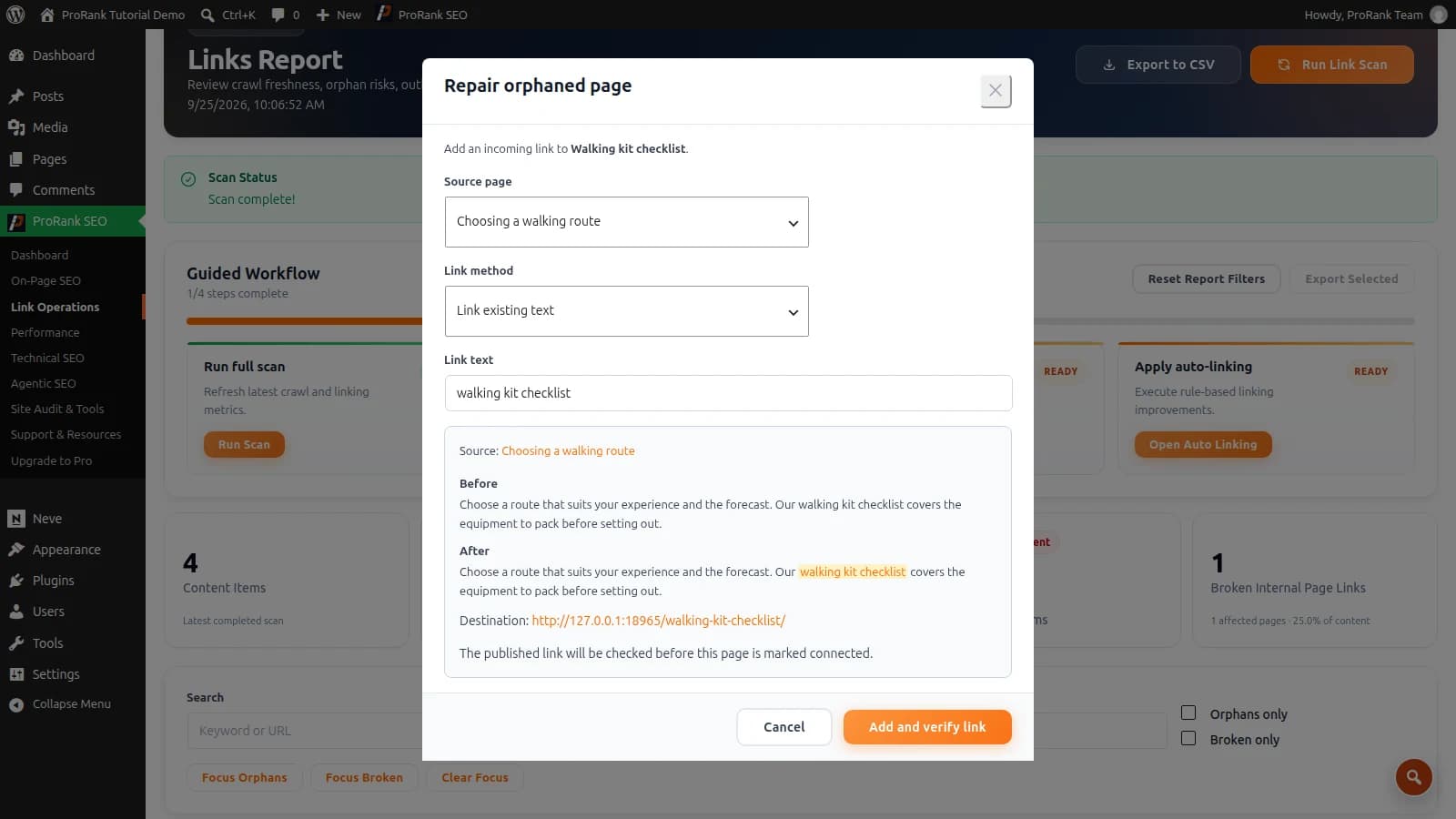
Use Review Orphans to narrow the page report, then open the repair action for a target. Select a relevant Source page and choose either Link existing text or Add a new linked paragraph. Review the wording with Preview link before selecting Add and verify link.
For example, our demonstration article “Choosing a walking route” mentions a “walking kit checklist”. Linking that phrase to the checklist gives readers a useful next step. The orphan-page tutorial follows that repair in detail.
6. Check the published result
Read the action’s result and open the source as a visitor. Confirm the anchor, destination and placement, then follow the link. If caching keeps serving the previous page, clear the relevant page cache and check again. A saved edit and a verified public result are separate observations.
If ProRank reports unsupported content or cannot verify the published result, inspect the page before trying another write. Builder content, reusable templates and custom fields can have different storage and rendering rules. Use the editor that owns the visible content when the selected operation cannot safely edit it.
7. Add automatic internal linking after reviewing the pattern
Under Automation → Auto Linking, create a focused rule for a phrase and its intended destination. Check the applicable settings and limits, then use Preview Run. Review where the phrase matches before choosing Run Auto Linking. Start with a small, well-defined rule.
A phrase such as “walking kit checklist” has a clear destination. A broad phrase such as “read more” does not. Automation is most useful when the same meaningful phrase appears across relevant content. It still needs review: a grammatical match is not always a useful recommendation.
For a URL that changed throughout the site, review URL Changes instead. Check the rule’s supported content, changed-item count and available revert action. Do not assume that every linking tool has the same scope or reversal behaviour.
8. Rescan and record the result
Run a fresh link scan after the changes are publicly visible. Compare the affected pages with the baseline, keeping the same scope. Record any remaining unverified checks separately from confirmed broken links. The broken-link repair guide explains how to handle those outcomes.
Repeat the review after a redesign, a migration or a substantial batch of new content. For navigation and feature details, see the ProRank internal-linking documentation. You can download ProRank to follow this workflow on your own WordPress site.
Frequently asked questions
- What does an internal-link audit check?
- It reviews which pages link to which destinations, whether important content has incoming links, and whether links are broken or redirected. Coverage and scan freshness matter: a partial or old report cannot establish the current state of the whole site.
- Can I audit internal links with ProRank Free?
- Yes. The linking workspace, page reports, reviewed link edits and automation tools described here are available in ProRank Free and Premium 1.6.3. Some advanced analytics and AI features require a relevant Premium plan.
- Should I apply every internal-link suggestion?
- No. Check whether the destination answers a useful next question for the reader. Review the source sentence and placement, avoid repeated or distracting links, and verify the published result.
- Do I need to change WordPress menus to fix an orphan?
- Sometimes a navigation change is appropriate, but a relevant link within another article or service page may be more useful. First establish whether the page is a genuine orphan or simply missing from the report’s configured content scope.