A useful page can remain published while visitors have no path to it from the rest of your website. Fixing an orphan means finding an appropriate source page and adding a link that makes sense in context. The goal is a connected website, not simply a smaller warning count.
This guide follows the orphan-repair workflow in ProRank 1.6.3. Its screenshots use an isolated WordPress demonstration. The source article mentions a walking kit checklist; the target checklist initially has no incoming link in the scanned content.
1. Confirm that the page is really disconnected
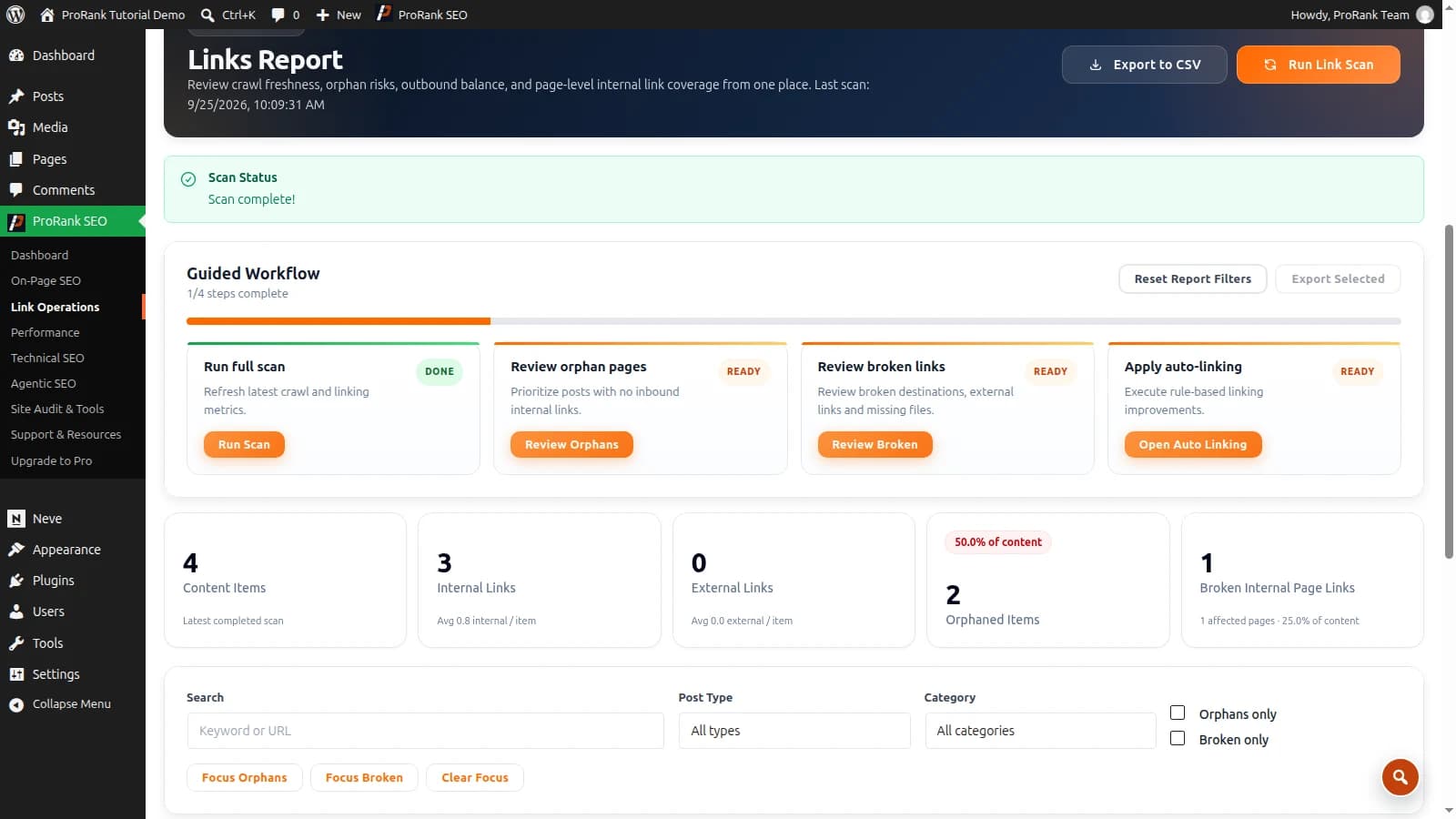
Open ProRank SEO → Link Operations → Opportunities → Pages. Check the last completed scan and the included content types. Use Run Link Scan for a current report, then Review Orphans to focus on candidate pages.
Look at the target’s incoming links and open the public website. A page linked from a menu or category listing is not completely unreachable, even if it lacks links inside article text. Conversely, a link stored in an inactive builder layout may not appear on the public page. Scope and rendered output both matter.
- Confirm the target is published and is the URL you intend to keep.
- Check that the relevant source content types were included in the scan.
- Distinguish a report filter from a genuine absence of incoming links.
- Check whether apparent incoming links lead to an old alias or an unrelated redirect.
- Keep incomplete or stale scans separate from verified findings.
Google can discover a URL through a sitemap or external links, but that does not create an internal route for your visitors. Its guidance recommends linking important pages from other relevant pages with meaningful anchor text. Read Google’s internal-link guidance.
2. Decide whether the page should be connected
Prioritise useful public pages: a current service, a product customers can buy, or a guide that answers a common question. Review obsolete campaigns and duplicates before adding links. A private confirmation page may be deliberately absent from navigation and editorial content.
In our example, “Walking kit checklist” is useful to someone choosing a walking route. It deserves a link from the route article because it helps that reader prepare. Adding the same checklist to an unrelated page just to clear a warning would be a weaker choice.
3. Choose a relevant source and link text
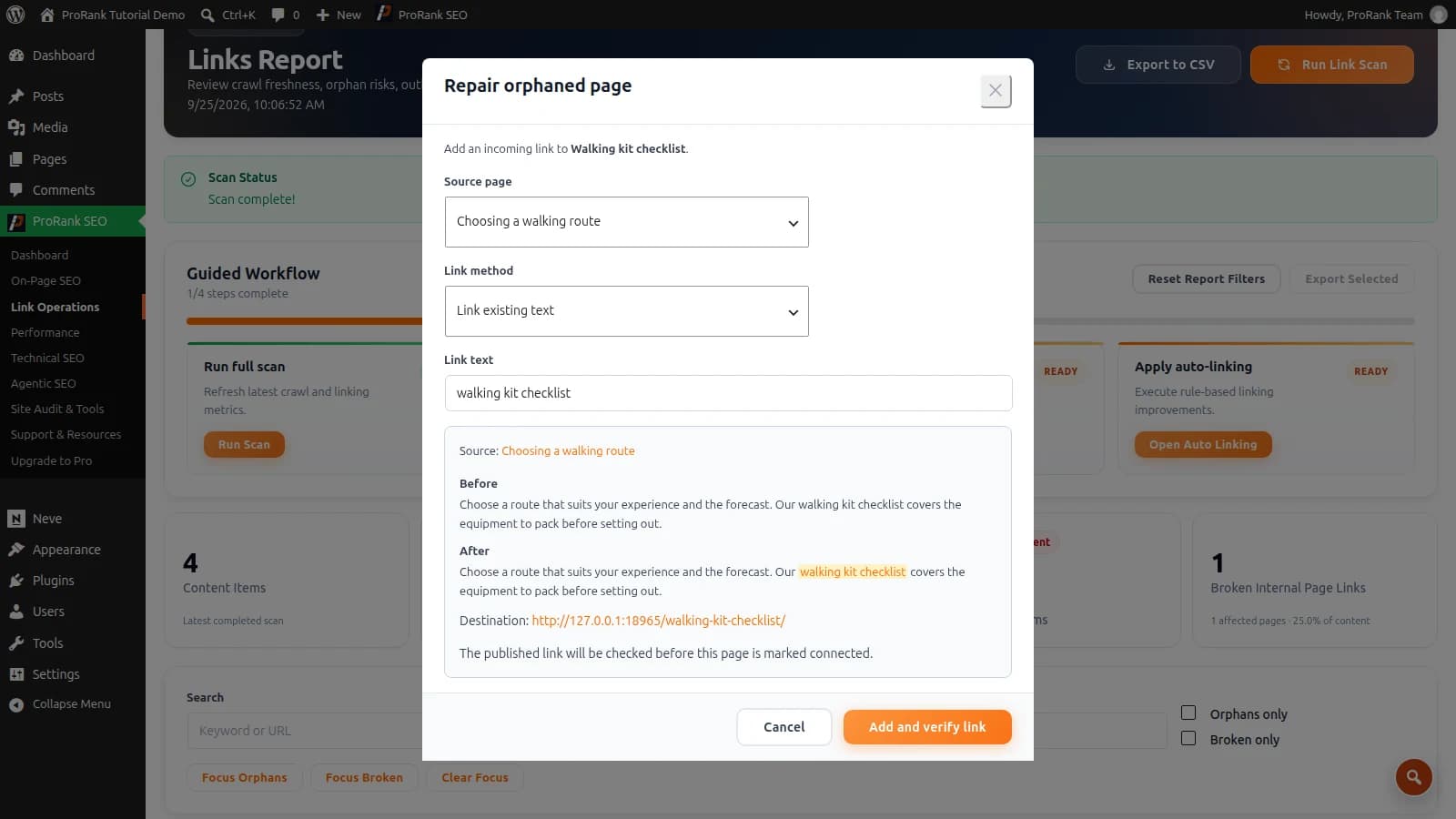
Open the target’s repair action. Under Source page, select a page with a natural reason to mention the destination. Review any suggested source rather than assuming the first recommendation is ideal. Read the source page as a visitor before making the edit.
Select Link existing text when the right phrase already appears. In the demonstration, the phrase “walking kit checklist” is already in the route article, so turning it into a link preserves the sentence. Use Add a new linked paragraph when an additional reading link is appropriate; review the offered placement and wording.
4. Preview the link before applying it
Check Link text, then choose Preview link. Confirm the source, destination and sentence preview. For a new paragraph, check where it will be placed. If you change the source or wording, generate another preview so you are reviewing the actual proposed edit.
Once the preview is correct, select Add and verify link. ProRank checks the published link before reporting a verified repair. If the source changed during review, reopen it and prepare a fresh preview instead of applying an old decision to new content.
5. Verify the published page
Open the source as a visitor and check the linked phrase in its sentence. Follow it to confirm that the target loads and answers the reader’s question. Check a narrow screen as well if the new paragraph or its placement could affect the layout.
If ProRank reports unsupported content or cannot verify the link, inspect the live page and relevant cache before trying another edit. Use the owning builder for an unsupported occurrence. A successful attachment, metadata or inactive-content save cannot stand in for a link in the published page.
6. Refresh the report and keep the page connected
Run another link scan using the same scope. The repaired target should now have an incoming link from the selected source. That confirms this connection; it does not guarantee rankings or mean the entire site’s structure is finished.
When publishing a new article, identify an existing page that should link to it as well as pages it should link out to. Revisit those relationships after deleting, merging or moving content. The internal-linking strategy guide explains how to organise a group of related pages without forcing a link into every paragraph.
If the incoming link exists but its destination fails, use the broken-link repair workflow. For the complete scan-to-review process, follow the WordPress internal-link audit and the ProRank linking documentation.
Frequently asked questions
- What is an orphan page?
- An orphan page has no incoming internal links from other pages on the same website. A report can only establish this within its scan scope, so check navigation, rendered content, included content types and scan freshness before treating a finding as a whole-site conclusion.
- Does adding a page to the sitemap fix an orphan?
- No. A sitemap can help discovery, but it does not add a link for someone reading another page on your website. A relevant internal link connects the page to the visitor’s journey.
- Should every orphan page receive links?
- No. Review the page’s purpose. A useful public guide or service page may deserve links; a private utility page, completed campaign or obsolete duplicate needs a different decision. Do not add links simply to reduce a count.
- How many incoming links does a page need?
- There is no universal target. One relevant link can connect a page, but it does not prove the page has strong coverage. Add links where they help readers, and prioritise useful content over a fixed quota.