
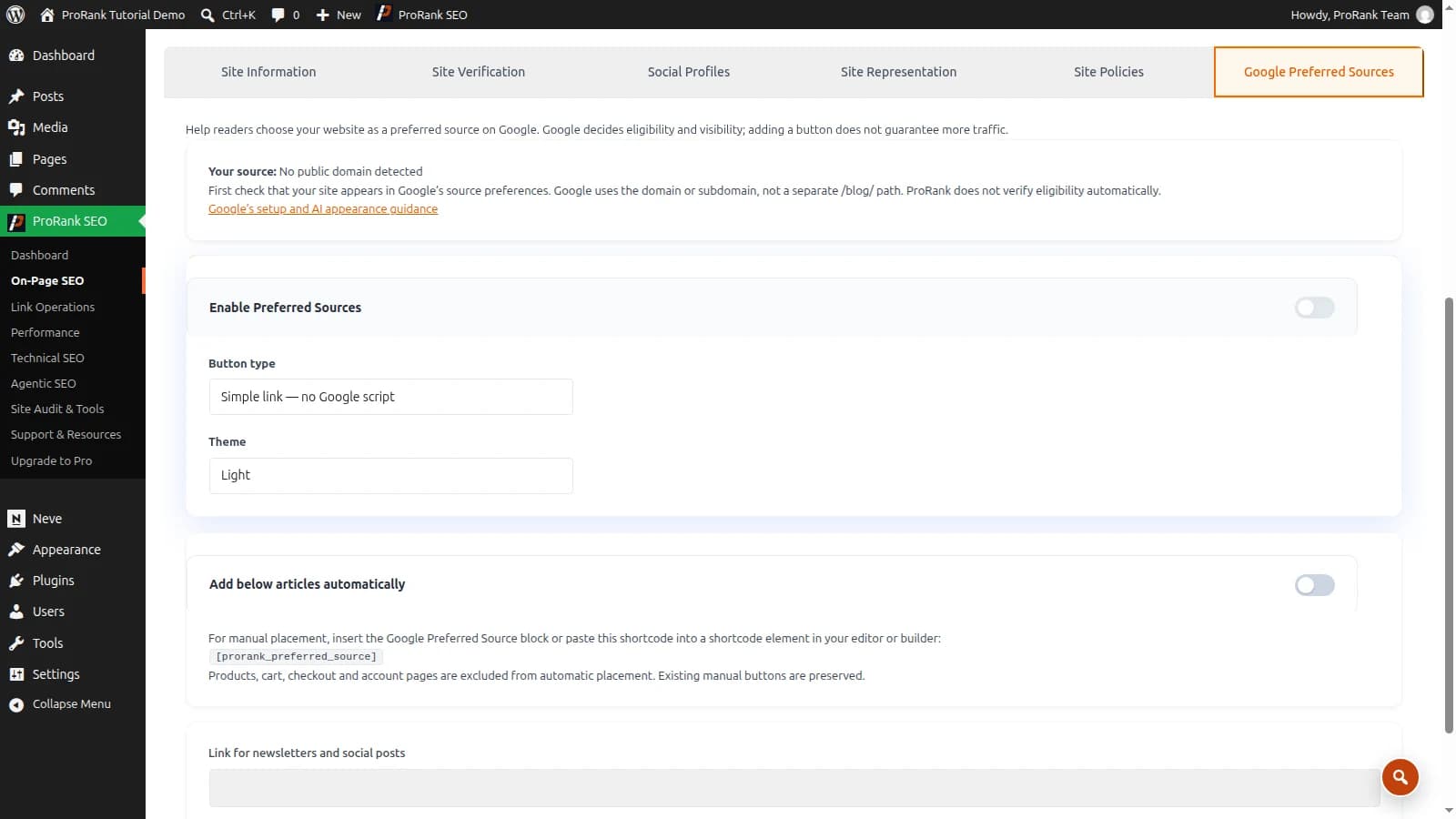
ProRank 1.6.3 lets you add a Google Preferred Sources invitation to WordPress with a simple link, an interactive button or a manually placed block. This guide shows how to choose the right mode, place it on useful articles and check the published result.
The feature is available in ProRank Free and Premium. The settings screenshot comes from an isolated demonstration site, so it correctly shows “No public domain detected”. On your live website, check the public domain and its eligibility before enabling the invitation.
What Google Preferred Sources does
Readers can select websites they prefer to see in supported Google experiences. Google documents worldwide availability for Top Stories and preferred badges in supported AI Mode and AI Overviews experiences, subject to its eligibility requirements. This is a reader preference, not a general ranking guarantee.
Eligible sources use a domain or subdomain, rather than a separate path such as /blog/. Check your site in Google’s source preferences before promoting the invitation. For AI appearances, review the Search Console requirements in Google’s current Preferred Sources guidance.
1. Open the Preferred Sources settings
In WordPress, open ProRank SEO → On-Page SEO → Site Basics → Google Preferred Sources. Check the value next to Your source. Use Check your site on Google to review the public domain in Google’s source preferences.
ProRank prepares the source link; it does not certify eligibility. If you are working on a local or private test installation, verify eligibility separately on the public site before inviting readers to select it. Do not use a development address in a public newsletter or article.
2. Enable the feature and choose a button type
Turn on Enable Preferred Sources. Under Button type, choose the experience you want to offer:
- Simple link — no Google script: a link takes the reader to Google when they follow it. ProRank does not load the interactive library for this mode.
- Google interactive button: ProRank loads Google’s library on pages containing the button. Review the Google connection notice in the settings before enabling it.
Choose a light or dark Theme to suit the surrounding page. Interactive mode also offers a Google button language setting; leave it automatic unless you need a specific language for the intended audience. Test the appearance against your actual theme rather than assuming the admin setting is a complete preview.
3. Choose automatic or manual placement
For automatic placement, enable Add below articles automatically and select the relevant items under Show on these content types. Start with the articles where the invitation is useful to readers. ProRank excludes products, cart, checkout and account pages from automatic placement and preserves existing manual buttons.
For precise placement, insert the Google Preferred Source block in a supported block editor, or place this shortcode in a shortcode element in your editor or builder:
[prorank_preferred_source]Keep the feature enabled for the manual output. Place the invitation where a reader has enough context to decide, such as after a useful guide. If a builder prints the shortcode as plain text, use its shortcode element instead of a code or plain-text element, then check the public page again.
4. Save and check a published article
Select Save Changes and wait for the saved-settings confirmation. Read any page-cache notice: a successful settings save does not mean every cached page has already refreshed. Open a published article as a visitor and confirm the invitation appears in the chosen location.
- Check the domain in the source link against your public website.
- Check the button at desktop and mobile widths, including keyboard focus.
- Follow the invitation to confirm it opens the intended Google flow.
- Return without changing account preferences unless you intend to make that selection.
- If the old page remains visible, clear the relevant cache and repeat the check.
With interactive mode, check whether a consent tool, content blocker or script optimisation setting affects the library. Simple link mode is an alternative when you want an ordinary link without that library connection. Verify the mode you choose on the pages where visitors will actually see it.
5. Reuse the source link where it is relevant
The settings include a read-only Link for newsletters and social posts. Copy that value when you want to invite an existing audience to find your publication again. Check the domain before using it and explain what the link does. There is no need to repeat the invitation in every paragraph.
Measure reader interest without promising rankings
Record when and where you added the invitation. If you measure clicks with your analytics setup, distinguish those clicks from completed selections in Google: a click alone does not establish that a reader chose your site. Review search traffic over time alongside other content changes rather than attributing every movement to the button.
Preferred Sources complements useful articles and a website readers can navigate. It does not replace your WordPress SEO foundations or internal linking. See the Site Basics documentation for the settings, or download ProRank to add the invitation to WordPress.
Frequently asked questions
- Is Google Preferred Sources included in ProRank Free?
- Yes. ProRank Free and Premium 1.6.3 include Preferred Sources settings, a simple link or interactive button, automatic article placement and manual placement with a block or shortcode.
- Does adding the button automatically subscribe every visitor?
- No. The button invites a reader to choose your site through Google’s selection flow. The reader makes that choice; installing ProRank or saving the setting does not make it for them.
- Should I choose simple link or interactive button mode?
- Simple link mode does not load Google’s button library and sends the reader to Google after they follow the link. Interactive mode loads Google’s library where the button appears. Choose the experience and third-party connection behaviour appropriate for your website.
- Why does the button not appear after saving?
- Check that the feature is enabled, the content type is selected for automatic placement, and you are viewing a published article. For manual placement, confirm that the editor renders the block or shortcode. Clear any cache still serving the previous page and check again.