SEO Roadmaps - Visual Task Management
Transform your SEO strategy into actionable tasks with ProRank's visual Kanban board. Organize projects, collaborate with your team, and track progress from start to finish - all in one intuitive interface.

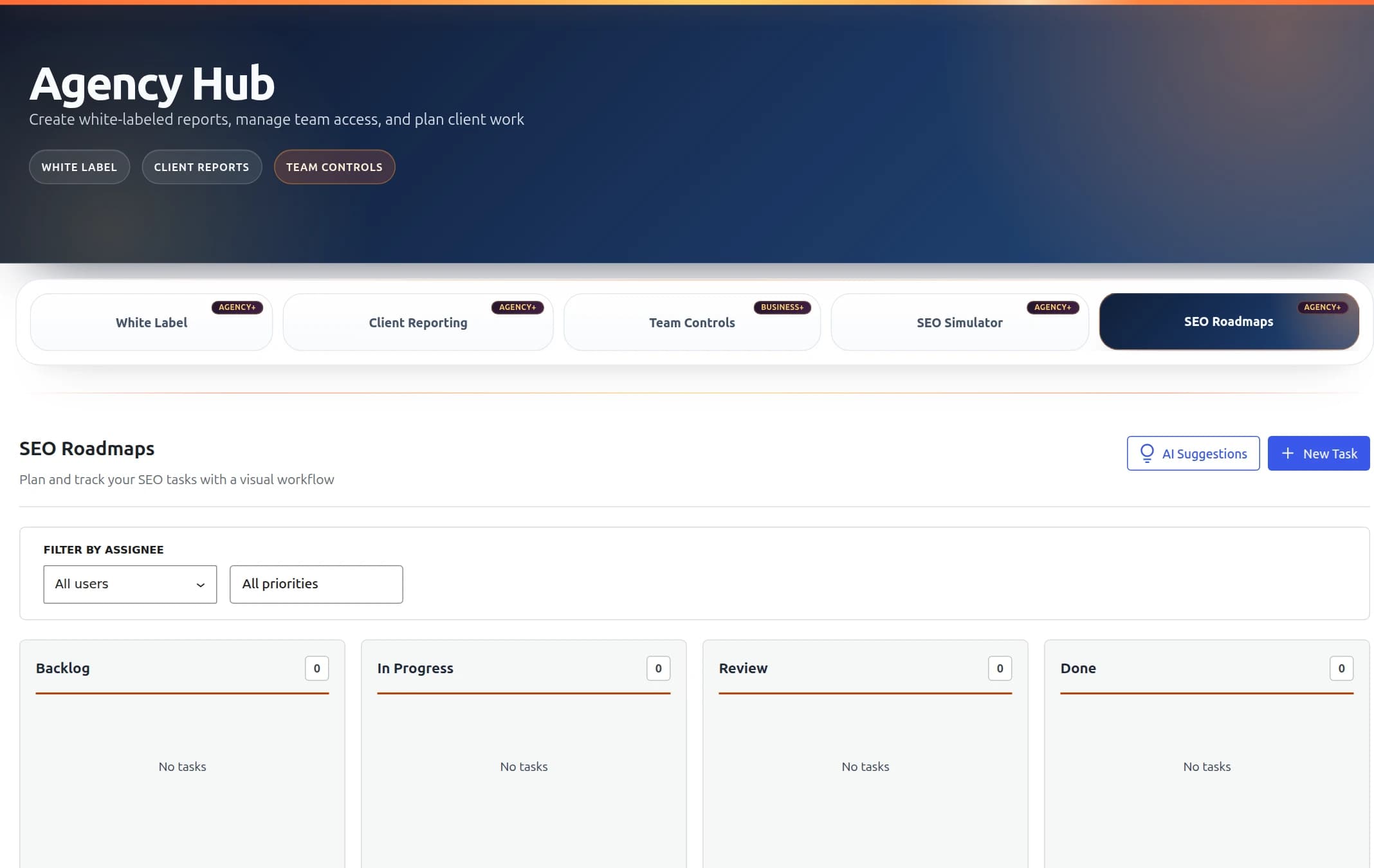
SEO Roadmaps interface with drag-and-drop task management
β¨ Key Features
Drag & Drop Kanban
Visual board with 4 columns to track task progress from idea to completion
Bulk Operations
Select multiple tasks to move, assign, or delete them all at once
Task Templates
27 pre-built SEO tasks across 5 workflow templates for quick setup
Advanced Filtering
Search by text, filter by tags, assignee, or priority level
CSV Export
Export all tasks to CSV for reporting or backup purposes
Task Details View
Expanded modal view with complete task information and history
π Getting Started
Accessing SEO Roadmaps
- Navigate to ProRank SEO β Agency Hub in your WordPress admin
- Click on the SEO Roadmaps tab
- The board loads with 9 sample SEO tasks to help you get started
First Time Setup
When you first access SEO Roadmaps, the system automatically:
- Creates the necessary database tables
- Sets up 4 task columns (Backlog, In Progress, Review, Done)
- Configures priority levels with color coding
- Loads 9 realistic sample SEO tasks across all columns
- Grants access permissions to administrators and editors
π The Kanban Board
Board Columns
Tasks move through four stages representing your SEO workflow:
π Backlog
Ideas and tasks waiting to be started
π In Progress
Tasks currently being worked on
π Review
Completed tasks awaiting review
β Done
Finished and approved tasks
Moving Tasks
Simply drag and drop tasks between columns:
- Click and hold on any task card
- Drag it to the desired column
- Drop to update the task status
- Changes save automatically
- Reorder tasks within columns by dragging up or down
π Task Management
Creating Tasks
- Click the "New Task" button (blue button in top toolbar)
- Fill in the task details:
- Title: Clear, actionable task name
- Description: Detailed information and requirements
- Priority: Urgent (red), High (orange), Medium (green), or Low (blue)
- Assignee: Team member responsible
- Due Date: Target completion date and time
- Target URL: Related webpage or resource
- Tags: Keywords for categorization (e.g., "technical", "content", "backlinks")
- Click "Save" to add the task to your backlog
Task Actions
Each task card has three action buttons:
- ποΈ View: Opens detailed task information in a read-only modal
- βοΈ Edit: Modify task details, reassign, or update priority
- ποΈ Delete: Permanently remove the task (with confirmation)
Priority System
Tasks are color-coded by priority for quick visual reference:
- π΄ Urgent - Critical tasks requiring immediate attention
- π High - Important tasks to complete soon
- π’ Medium - Standard priority tasks
- π΅ Low - Tasks that can wait
β Bulk Task Operations
Entering Bulk Mode
- Click the "Bulk Actions" button in the toolbar
- Checkboxes appear on each task card
- Select tasks by clicking their checkboxes
- Use "Select All" to select all visible tasks
Available Bulk Actions
- Move to Column: Move all selected tasks to a different status
- Assign to User: Bulk assign tasks to a team member
- Delete Tasks: Remove multiple tasks at once
- Clear Selection: Deselect all tasks
Bulk Operation Tips
- Selected tasks are highlighted with a blue border
- The toolbar shows how many tasks are selected
- Combine with filters to bulk-manage specific task groups
- Exit bulk mode by clicking "Exit Bulk Mode"
π Task Templates
Using Templates
- Click the "Templates" button in the toolbar
- Browse the 5 available template categories
- Click on a template to see its tasks
- Click "Create X Tasks" to add them to your board
Available Templates
π New Website Launch SEO (6 tasks)
Complete checklist for launching a new website
- β’ Install and Configure SEO Plugin
- β’ Create XML Sitemap
- β’ Set Up Google Analytics 4
- β’ Configure Robots.txt
- β’ Implement Schema Markup
- β’ Optimize Page Titles and Meta Descriptions
π§ Technical SEO Audit (6 tasks)
Comprehensive technical SEO checkup
- β’ Crawl Website with SEO Spider
- β’ Check Mobile Responsiveness
- β’ Analyze Core Web Vitals
- β’ Audit Internal Linking Structure
- β’ Check for Duplicate Content
- β’ Review HTTPS Implementation
π Content Optimization Sprint (5 tasks)
Optimize existing content for better rankings
- β’ Conduct Content Gap Analysis
- β’ Update Top 10 Landing Pages
- β’ Optimize Images with Alt Text
- β’ Create Internal Linking Plan
- β’ Write FAQ Sections
π Local SEO Setup (5 tasks)
Essential tasks for local business SEO
- β’ Create Google Business Profile
- β’ Build Local Citations
- β’ Implement Local Schema Markup
- β’ Create Location Pages
- β’ Gather Customer Reviews
π E-commerce SEO Essentials (5 tasks)
Critical SEO tasks for online stores
- β’ Optimize Product Titles
- β’ Write Unique Product Descriptions
- β’ Implement Product Schema
- β’ Optimize Category Pages
- β’ Set Up Faceted Navigation SEO
π Search and Filtering
Text Search
Quickly find tasks using the search bar:
- Type keywords in the search box
- Searches across task titles, descriptions, tags, and URLs
- Results update instantly as you type
- Click the X button to clear search
Tag Filtering
Filter tasks by their tags:
- Click the "Tags" button in the filter bar
- A dropdown shows all available tags
- Check the tags you want to filter by
- Only tasks with selected tags will be shown
- Click "Clear tag filters" to reset
User and Priority Filters
- User Filter: Show tasks assigned to specific team members
- Priority Filter: Display only tasks of certain priority levels
- Combined Filters: Use multiple filters together for precise views
- Clear Filters: Reset all filters with one click
π CSV Export
Exporting Tasks
- Click the "Export CSV" button in the toolbar
- A CSV file downloads automatically
- File is named with today's date (e.g., seo-roadmap-2024-01-15.csv)
Exported Data
The CSV includes all task information:
- Task ID, Title, and Description
- Status and Priority
- Assignee name
- Due date and completion date
- Target URL
- Tags (semicolon-separated)
- Created, updated, and completed timestamps
Use Cases for Export
- Create reports for clients or management
- Backup your task data
- Analyze task metrics in spreadsheet software
- Share task lists with external teams
- Archive completed projects
ποΈ Task Details View
Viewing Task Details
Click the eye icon on any task to see comprehensive information:
- Task Information: ID, creation date, last update, completion date
- Assignment: Assignee details with avatar and email
- Status & Priority: Visual badges showing current state
- Description: Full task description and requirements
- Tags: All associated tags for categorization
- Target URL: Clickable link to related resource
- Due Date: With visual indicator if overdue
Detail View Actions
- Edit Task: Switch to edit mode from the detail view
- Close: Return to the board view
π€ AI Task Suggestions
Getting AI-Powered Suggestions
- Click the "AI Suggestions" button
- Enter your website URL or describe your SEO goals
- Choose suggestion type:
- Quick audit (5-7 tasks)
- Comprehensive analysis (10-15 tasks)
- Technical focus
- Content focus
- Review generated tasks
- Select tasks to add to your board
π₯ Team Collaboration
User Assignment
Assign tasks to team members for clear accountability:
- All WordPress users appear in the assignee dropdown
- Users see their avatar on assigned tasks
- Filter by assignee to see individual workloads
- Bulk assign multiple tasks to one person
Permission Levels
- Administrators: Full access to all features
- Editors: Can manage all tasks
- Other roles: Can be granted access via capabilities
π‘ Best Practices
Task Creation
- β Use action verbs in titles ("Optimize", "Fix", "Create")
- β Include measurable goals in descriptions
- β Set realistic due dates
- β Use consistent tag naming
- β Break large projects into smaller tasks
Board Management
- β Review the board daily during team standups
- β Keep "In Progress" limited to active work
- β Move completed tasks promptly
- β Use filters to focus on priorities
- β Export and archive completed projects monthly
Workflow Tips
- Start with templates for new projects
- Use bulk operations for routine updates
- Tag tasks consistently for better filtering
- Set priority based on business impact
- Review and clean up "Done" column weekly
β¨οΈ Keyboard Shortcuts
| Shortcut | Action |
|---|---|
| / | Focus search box |
| n | Create new task |
| b | Toggle bulk mode |
| Esc | Close modal/Clear selection |
π§ Troubleshooting
Common Issues and Solutions
Tasks not saving
- Check your internet connection
- Verify REST API is enabled
- Clear browser cache
- Check browser console for errors
Drag and drop not working
- Ensure JavaScript is enabled
- Try a different browser
- Disable conflicting plugins temporarily
- Check for theme conflicts
Can't see bulk action checkboxes
- Click "Bulk Actions" button first
- Ensure you're not in drag mode
- Check if CSS is loading properly
π API Reference
REST API Endpoints
# List all tasks
GET /wp-json/prorank-seo/v1/seo-roadmaps/tasks
# Create new task
POST /wp-json/prorank-seo/v1/seo-roadmaps/tasks
{
"title": "Optimize homepage meta tags",
"description": "Update title and description",
"priority": "high",
"status": "backlog",
"tags": ["seo", "meta", "homepage"]
}
# Update task
PUT /wp-json/prorank-seo/v1/seo-roadmaps/tasks/{id}
# Delete task
DELETE /wp-json/prorank-seo/v1/seo-roadmaps/tasks/{id}
# Move task (drag and drop)
POST /wp-json/prorank-seo/v1/seo-roadmaps/tasks/reorder
{
"task_id": 123,
"status": "in_progress",
"position": 0
}
# Get users for assignment
GET /wp-json/prorank-seo/v1/seo-roadmaps/users
# Get AI suggestions
POST /wp-json/prorank-seo/v1/seo-roadmaps/suggest-tasks
{
"url": "https://example.com",
"type": "comprehensive"
}πΎ Database Structure
Tasks are stored in the wp_prorank_roadmap_items table:
-- Table structure
CREATE TABLE wp_prorank_roadmap_items (
id bigint(20) unsigned PRIMARY KEY,
title varchar(255) NOT NULL,
description text,
status varchar(50) DEFAULT 'backlog',
priority varchar(20) DEFAULT 'medium',
assignee_id bigint(20) unsigned,
due_date datetime,
url_target varchar(2048),
tags_json text,
position int(11) DEFAULT 0,
created_by bigint(20) unsigned,
created_at datetime DEFAULT CURRENT_TIMESTAMP,
updated_at datetime ON UPDATE CURRENT_TIMESTAMP,
completed_at datetime
)β Frequently Asked Questions
How many tasks can I create?
Can I import tasks from CSV?
Do changes sync in real-time between users?
Can I customize the column names?
Is there a mobile app?
π Integration with Other Features
Works Great With:
- Site Audit: Create tasks from audit findings
- Rank Tracking: Generate tasks for underperforming keywords
- Content AI: Turn content suggestions into actionable tasks
- Collaboration: Real-time updates when working with teams
- White Label: Brand the interface for client access
π― Next Steps
Enable Team Collaboration
Set up real-time collaboration for your team
Create Client Reports
Generate professional reports from your task data