
Site Audit User Guide
Learn how to use ProRank SEO's Site Audit feature to find and fix SEO issues on your website. This tool helps you identify problems that may be hurting your search rankings.
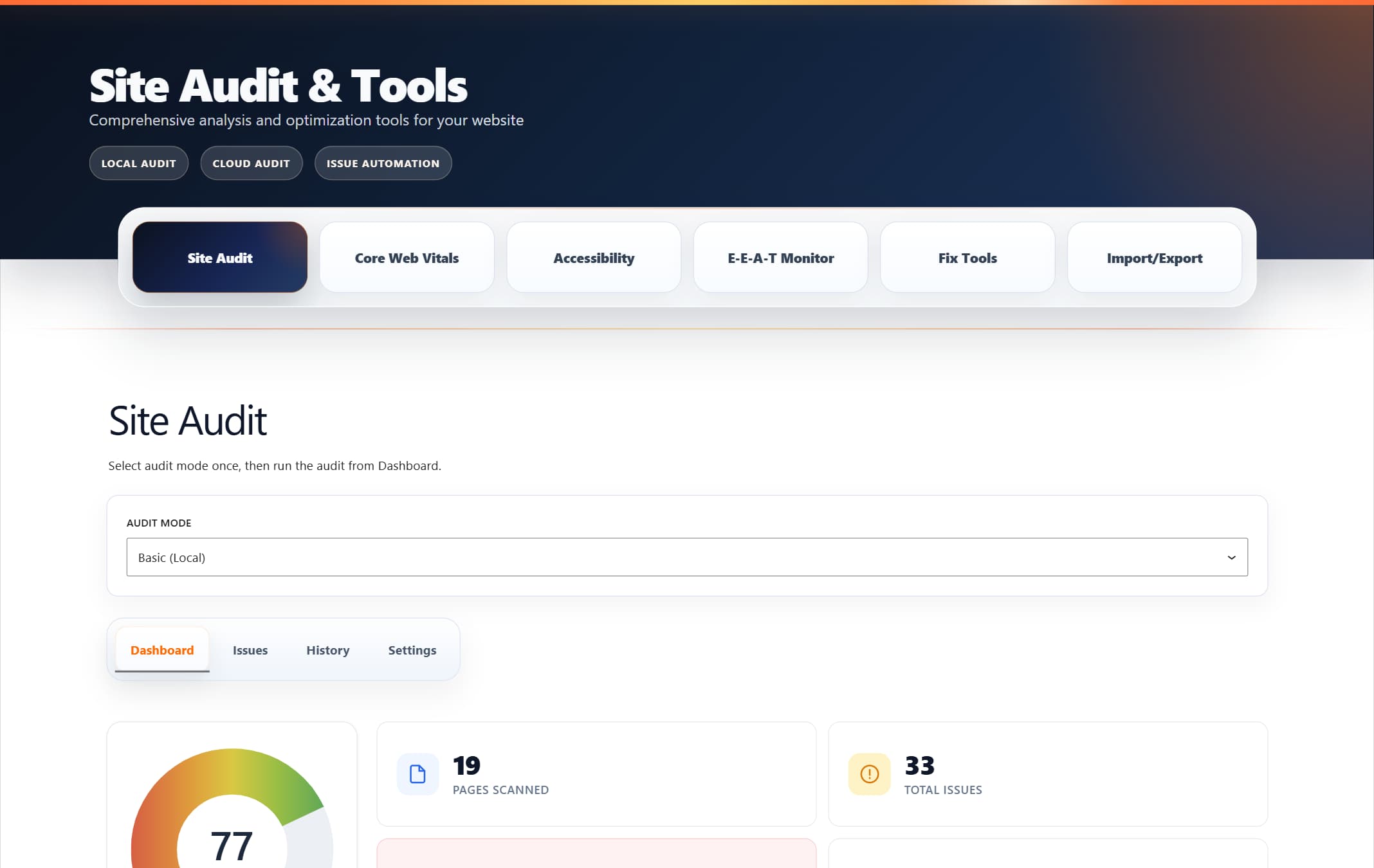
ProRank 1.6.0 · WordPress demo · Captured 5 September 2026
What is Site Audit?
Site Audit crawls the configured part of your website, up to the page limit for the run, to find SEO problems. It checks things like:
- Missing page titles and descriptions
- Broken links and images
- Slow loading pages
- Mobile-friendliness issues
- Security problems
- Content quality issues
In Basic (Local) mode, ProRank performs the crawl and analysis on your WordPress host in bounded steps and stores the evidence on your site. On eligible paid plans, Cloud (Advanced) mode sends the licensed site and selected crawl settings to ProRank's controlled workers, which request the public pages and return the results to WordPress.
How to Start Your First Audit
Step 1: Go to Site Audit
- In your WordPress admin, go to ProRank SEO in the left menu
- Click on Site Audit & Tools
- You'll see the Site Audit dashboard
Step 2: Choose an Audit Mode
Choose the mode that fits your plan and host:
- Basic (Local): Available in Free and paid editions. The audit runs on your WordPress host and no audit data is sent to ProRank.
- Cloud (Advanced): Requires an eligible active paid license. If ProRank.io is not connected, check the license in Support & Account or switch to Basic (Local).
Step 3: Start the Audit
- Click the "Start New Audit" button
- The audit will begin scanning your website
- Follow the live progress, findings, affected-page counts, category totals, and current score as pages are checked
- Wait for the audit to complete; duration depends on the page limit, site response time, and enabled checks
Understanding Your Results
The Dashboard Tab
During a run, the Dashboard updates from persisted crawl evidence. After a complete or recoverable partial run, it shows:
- SEO Score: A number from 0-100 showing your site's overall SEO health
- Total Issues: How many problems were found
- Issue Breakdown: Issues sorted by severity (Critical, High, Medium, Low)
- Category and page coverage: Category totals and the number of affected pages represented by the evidence collected so far
- Partial status: A clear label when a processing limit or stall ended the crawl after usable evidence had already been collected
Issue Severity Levels
🔴 Critical Issues
These need immediate attention. They seriously hurt your SEO.
🟠 High Priority
Important problems that should be fixed soon.
🟡 Medium Priority
Issues that affect SEO but aren't urgent.
🔵 Low Priority
Minor issues you can fix when you have time.
The Issues Tab
Click the Issues tab to see all problems found. For each issue, you'll see:
- What the problem is
- Which pages are affected
- How to fix it
- Why it matters for SEO
Core Web Vitals Tab
The Core Web Vitals tab shows your site's performance metrics:
- LCP: How fast your main content loads
- INP: How quickly your site responds to clicks (replaced FID in March 2024)
- CLS: How stable your page layout is
- FCP: When the first content appears
- TTFB: Server response time
How to Fix Issues
Manual Fixes
Most issues need to be fixed manually. The audit will tell you exactly what to do:
- Click on an issue in the Issues tab
- Read the "How to Fix" instructions
- Make the changes to your website
- Run another audit to check if it's fixed
Quick Fix Button
Some issues have a "Quick Fix" button. These can be fixed automatically:
- Missing meta descriptions
- Image compression issues
- Browser caching settings
- GZIP compression
When an issue exposes a supported fix action, review the proposed change before applying it. Other findings include evidence and manual remediation guidance instead.
Exporting Your Results
After an audit completes, you can download the results:
- Look for the Export CSV or Export PDF buttons
- Click the format you want
- The report will download to your computer
This is useful for:
- Sharing results with clients or team members
- Keeping records of improvements over time
- Working on fixes offline
Customizing Audit Settings
Click the Settings tab to customise how the audit runs:
Basic Settings
| Setting | What it Does | Recommended |
|---|---|---|
| Max Pages | How many pages to scan | Use the allowance shown for your licence and site size |
| Crawl Speed | How fast to scan (pages per minute) | 30 (default) |
| Check Images | Look for broken/unoptimised images | On |
| Check External Links | Verify links to other websites work | Off (slower) |
Viewing Past Audits
The History tab shows your previous audits:
- Date and time of each audit
- SEO score for that audit
- Number of issues found
- Comparison with the previous completed audit only when target, audit type, checker selection, and crawl settings are comparable
This helps you track if your SEO is improving over time!
Best Practices
How Often to Run Audits
- ✅ Monthly: For most websites
- ✅ Weekly: If you're actively fixing issues
- ✅ After Major Changes: When you update content or design
Tips for Better Results
- ✅ Fix critical issues first
- ✅ Focus on pages that get the most traffic
- ✅ Run a new audit after making fixes to verify they worked
- ✅ Export results before making changes for comparison
Common Questions
Why is my audit not starting?
Check these things:
- Is Site Audit enabled, and do you have permission to run it?
- Is another audit already running?
- For Cloud (Advanced), is ProRank.io connected with an eligible active license?
Basic (Local) does not require a ProRank.io connection. If Cloud mode is unavailable, check Support & Account or switch to Local mode.
How long does an audit take?
It depends on your site size:
- Small sites (under 50 pages): 2-5 minutes
- Medium sites (50-500 pages): 5-15 minutes
- Large sites (over 500 pages): 15-30 minutes
Can I stop an audit once it starts?
Yes. While an audit is running, use the stop or cancel action. Processing stops and already-crawled page data may remain for troubleshooting, but a cancelled run does not produce a final score, comparison, or export.
Will the audit slow down my website?
Basic (Local) uses CPU, memory, and network resources on your WordPress host while its bounded crawl steps run, so choose a page limit appropriate for the server. Cloud (Advanced) moves crawl coordination and analysis to controlled workers, although requests for public pages still reach your hosting like search-engine requests.
What's the difference between issue types?
Issues are grouped into categories:
- Technical SEO: Code and structure problems
- On-Page: Content and keyword issues
- Performance: Speed and loading problems
- Security: HTTPS and safety issues
- Mobile: Problems on phones/tablets
Troubleshooting
If You See "ProRank.io Not Connected" in Cloud Mode
- Switch to Basic (Local) if you want to run the included on-site audit without a cloud connection
- Go to ProRank SEO → Support & Account
- Check if your license key is entered
- Make sure your license is active (not expired)
- Click "Save Changes" to reconnect
If the Audit Gets Stuck
- Refresh the page and review the persisted status and recovery notice
- If ProRank reached a processing limit or recovered a stalled run after collecting usable evidence, open the explicitly labelled partial report
- Use Stop & Restart when it is offered for a stalled run, or cancel deliberately if you do not need the collected evidence
- Start a fresh audit when you need a complete result for comparison
If Results Seem Wrong
- Check the Settings tab
- Make sure "Max Pages" is high enough
- Verify no important pages are excluded
- Run the audit again
What to Do After Your Audit
- Review Critical Issues First - These have the biggest impact on SEO
- Review available fixes - Apply supported fixes deliberately and follow the guidance for manual issues
- Fix Manual Issues - Follow the "How to Fix" instructions
- Check Core Web Vitals - Make sure your site loads fast
- Re-run Audit - After making fixes, run again to see improvements
- Export Results - Save a copy for your records
Additional Features
Re-run Audit Button
After completing an audit, you'll see a "Re-run Audit" button. Use this to:
- Check if your fixes worked
- Find new issues that may have appeared
- Update your SEO score
Real-Time Updates
While the audit runs, you'll see:
- Live progress bar
- Number of pages scanned
- Current status messages
- Tracked, crawled, and analysed page counts
- Persisted findings and severity totals
- Category totals, affected-page counts, and the current score
Recoverable Partial Reports
If a long-running audit reaches its processing limit, or a stalled run is recovered after collecting usable evidence, ProRank saves the available result as an explicitly labelled partial report instead of discarding it. Review the captured findings, then run a fresh audit when you need complete coverage. This recovery path is different from deliberately cancelling a run, which does not create a final report.
Smart Issue Detection
The audit automatically finds:
- Duplicate content
- Missing alt text on images
- Pages that load too slowly
- Broken internal and external links
- Mobile usability problems
- Observable HTTPS and security-configuration problems