
User Management
Browse, edit, and export your existing WordPress users from the Agency Hub Team Controls tab. The mounted user-management surface focuses on role and status changes for users you already have.
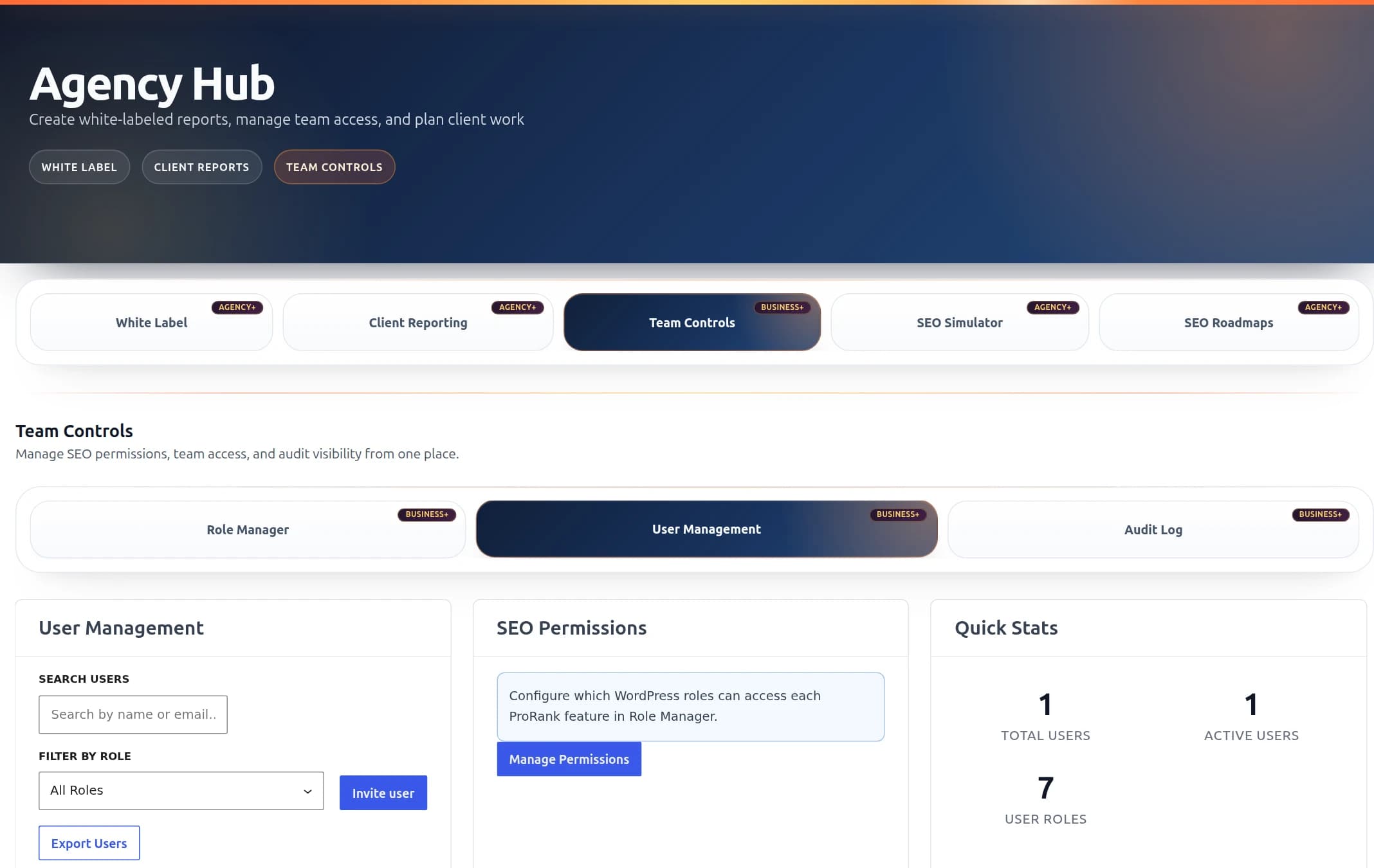
ProRank 1.6.1 · WordPress demo · Captured 8 September 2026
User Management interface showing the user list, search filters, and action buttons
What is User Management?
User Management lets you control your WordPress users and their access to ProRank SEO features. It works directly with your existing WordPress user system - no need to create separate accounts or remember different passwords.
Use it to assign roles to users you already created in the standard WordPress Users screen, toggle account status for individual users, and export the user list for record-keeping.
WordPress Integration
Features That Actually Work
Here's what you can do with User Management right now
Search & Filter
Find users quickly by name or email and narrow the list with the role filter dropdown.
Edit User Role
Open the Edit modal to assign a new role from a dropdown. Display name and email are read-only — edit those from the standard WordPress Users screen.
Enable / Disable Account
Inside the Edit modal, toggle the account between Active and Disabled with the "Disable Account" / "Enable Account" button. Disabled users cannot log in.
Export Users to CSV
Click "Export Users" to download the current user list as a CSV file for reports or backups.
Quick Stats Panel
See Total Users, Active Users, and the number of available User Roles in the side panel.
SEO Permissions Shortcut
The "Manage Permissions" button on the SEO Permissions card opens the main plugin settings, where you control which roles can access ProRank features.
Understanding User Roles
WordPress roles and ProRank-specific permissions
Standard WordPress Roles
Full access to everything including ProRank SEO
Can edit posts and pages, limited SEO access
Can write and publish their own posts
Can write posts but cannot publish
Can only view the site
ProRank Custom Roles
Can manage SEO settings, view reports, and edit content
Read-only access to SEO reports and analytics
How to Use User Management
Step-by-step instructions for common tasks
How to Edit a User
- 1Find the user in the list
- 2Click the edit (pencil) icon in the Actions column
- 3Pick a new role from the dropdown in the modal that appears
- 4Click "Save Changes" to apply the new role
Common Use Cases
Real-world scenarios for using User Management
Assigning Team Roles
Once team members have been added in the standard WordPress Users screen, open the Edit modal here to give them the right level of access:
- • Project Managers → Administrator
- • SEO Specialists → ProRank SEO Manager
- • Content Writers → Editor
- • Clients → ProRank SEO Viewer
Managing Freelancer Access
1. After the freelancer's WordPress account exists, assign them an appropriate role here
2. When the project ends, open their Edit modal and click Disable Account
3. Re-enable later if you work with them again
Client Read-Only Access
Give clients visibility without editing rights by assigning the "ProRank SEO Viewer" role. They can see reports and analytics but cannot change any settings.
Team Member Leaves
1. Disable their account immediately to revoke access
2. Reassign their content from the standard WordPress Users screen if needed
3. Export the user list for your records
Troubleshooting
Solutions to common issues
No users showing in the list?
• Check if filters are applied (click "Clear filters")
• Verify you have the right permissions
• Make sure you have a Business+ license
Export not working?
• Try a different browser
• Ensure you have users to export
• Check browser console for errors
Understanding Quick Stats
What the numbers mean
Total Users
All WordPress users on your site, including inactive ones
Active Users
Users who are enabled and can log in to WordPress
User Roles
Number of different role types available in WordPress
Best Practices
Tips for effective user management
Use appropriate roles
Don't give Administrator access unless absolutely necessary
Regular audits
Review user list monthly and remove unnecessary accounts
Disable instead of removing
Disabling preserves the account and audit history; user removal is handled from the standard WordPress Users screen.
Export regularly
Keep CSV backups of your user list for record-keeping
Use ProRank roles for SEO team
SEO Manager and SEO Viewer roles provide the right balance of access
Related Features
Other Agency Hub features that work with User Management
Audit Log
Tracks all user actions including role changes, logins, and modifications to SEO settings.
SEO Permissions
Configure which WordPress roles can access specific ProRank SEO features in the main settings.