
White Label Branding
Customise ProRank SEO with your agency's branding to provide a seamless experience for your clients.
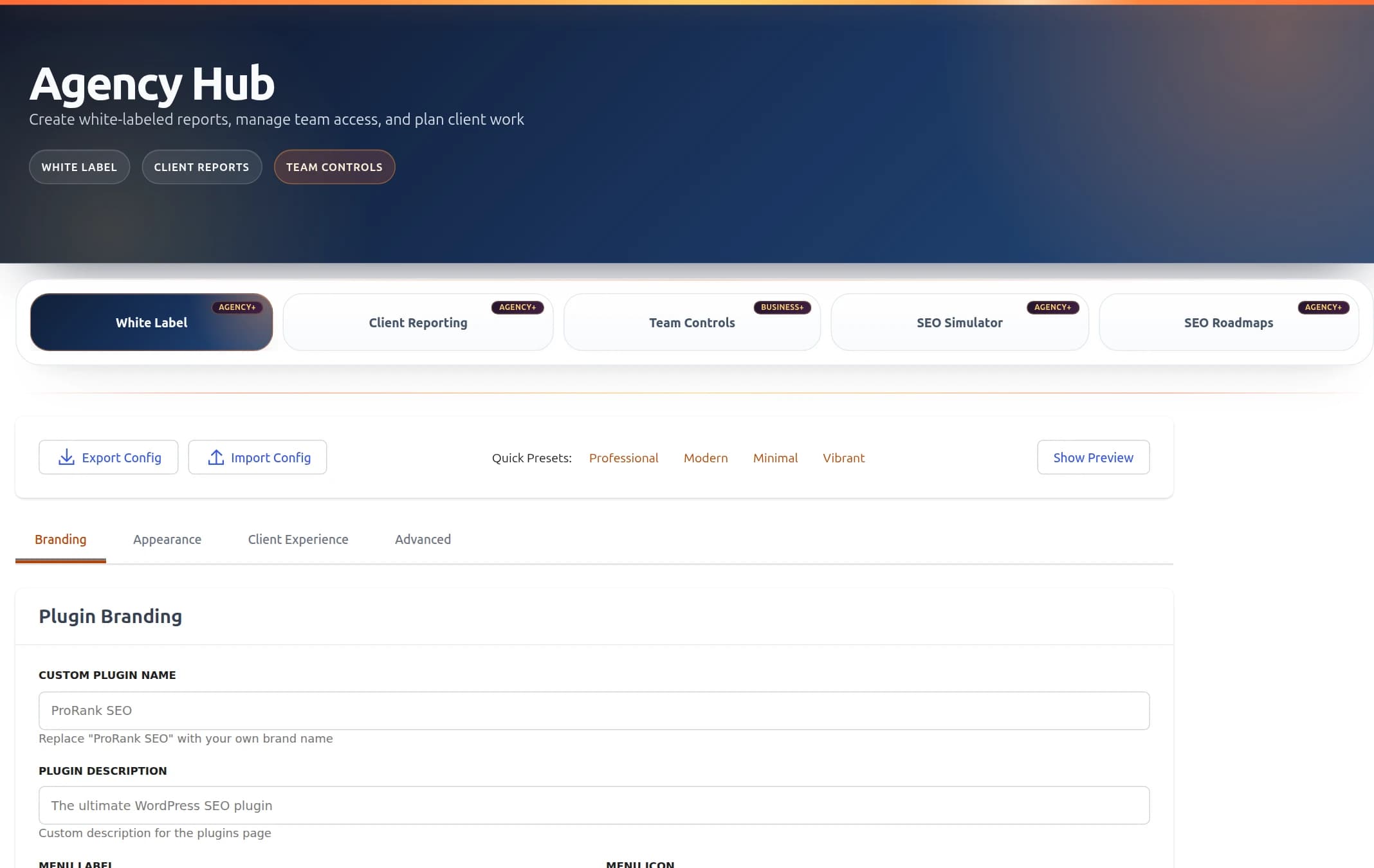
ProRank 1.6.1 · WordPress demo · Captured 8 September 2026
White Label configuration interface in Agency Hub
What is White Labeling?
White labeling allows you to rebrand ProRank SEO as your own product. Remove all references to ProRank and replace them with your agency's branding, creating a professional, cohesive experience for your clients.
With White Label
- • Your agency name and logo
- • Custom color scheme
- • Personalized welcome messages
- • Your support information
- • Branded email notifications
Without White Label
- • ProRank branding visible
- • Default color scheme
- • Standard ProRank messages
- • ProRank support links
- • ProRank email templates
White Label Features
Comprehensive customization options for complete rebranding
Brand Identity
Replace plugin name, description, menu label, and hide ProRank branding completely
Multiple Logo Options
Upload menu icon, login logo, and admin logo with WordPress Media Library integration
Color Presets & Pickers
4 quick template presets (Professional, Modern, Minimal, Vibrant) plus primary and secondary colour pickers
Font Family Control
Choose from 10 preset fonts (System Default, Inter, Poppins, Roboto, Open Sans, Montserrat, Lato, Raleway, Source Sans Pro, Nunito)
Custom CSS Field
Plain textarea for additional CSS (5000 character limit, applied via wp_add_inline_style on ProRank admin pages)
Live Preview
Real-time preview with generated CSS before applying changes
Configuration Guide
Branding Tab
Plugin Identity
- Plugin Name: Replace "ProRank SEO" with your agency name
- Plugin Description: Custom description shown on the WordPress plugins page
- Menu Label: Customise the admin menu label
Icons
- Menu Icon: Custom icon for the ProRank admin menu (uses the WordPress Media Library)
- Favicon: Custom favicon shown in the wp-admin browser tab
Import / Export
The Import / Export bar at the top of the tab lets you download all current white-label settings as JSON, or upload a previously exported file to restore them.
How to Enable White Label
Verify License
Ensure you have an Agency license. Check in ProRank SEO → Support & Account
Access White Label Settings
Navigate to ProRank SEO → Agency Hub → White Label
Configure Settings
Fill in your agency information, upload logos, and customise appearance
Preview Changes
Use the preview feature to see changes before applying them
Save and Apply
Save your settings to apply white label branding site-wide
Best Practices
Do's
- Use high-quality logos and images
- Maintain consistent color scheme
- Test on different screen sizes
- Export settings for backup
- Update support information
Don'ts
- Use low-resolution images
- Override critical functionality CSS
- Use conflicting color combinations
- Forget to test after updates
- Leave default ProRank links
How It Works
Settings Storage
All white label settings are saved in your WordPress database and applied automatically across your site. Changes take effect immediately after saving.
License Requirements
White Label is included with Agency. It lets you customise ProRank with your own branding for client sites.
Frequently Asked Questions
Will white label settings affect SEO functionality?
No, white label only changes the appearance and branding. All SEO features, optimisations, and tools continue to work exactly the same.
Do I need to configure everything at once?
No, you can start with basic settings like changing the plugin name and add more customization later. All fields are optional.
Can I use different branding for different client sites?
Yes! Each WordPress site can have its own unique white label configuration. Every client can have their own custom branding.
What happens if my license expires?
Your white label settings stay active and your branding remains in place. You just won't be able to make new changes until you renew.
Can I preview changes before applying them?
Yes. The Live Preview panel inside the White Label tab updates as you edit fields, so you can see your branding before clicking Save Changes.
Need Help?
If you need assistance with white label configuration or have questions about Agency licensing: